
Code Diff since Baseline from within Visual Studio
|
This document explains how to use the NDepend build comparison features, directly in Visual Studio and VisualNDepend.exe. This allows users to easily compare code in Visual Studio between the current version and a previous version without leaving VS. To use build comparison features specifically for reporting, please see Reporting Code Diff. |
Watch this video on comparing code changes since a baseline in Visual Studio (4 minutes)
Introduction to Comparing Code
Code evolution and maintenance are some of the most prominent characteristics of software engineering. Nowadays, Visual Studio relies mostly on Git to explore code changes. But there is mismatch: Git and other Source Control Managers deal with textual changes while Visual Studio deals with lines of code. These tools don't distinguish between comment changes, formatting changes, refactored code in methods, added types, method visibility changes or removed fields. In short, SCMs only look at code as text and don't see the structure of purpose of the code
NDepend has advanced code evolution and code diff features that can distinguish between code changes (like method behaviour changes) and text changes (like comment changes). These features are not meant to compete with or replace the Source Control Manager. Instead, these features can be used as a complementary tool to track changes with a focus on code quality.
NDepend's code diff tool for Visual Studio includes many features
- The code diff feature is based on the concept of a baseline: the current analysis result is compared against an older analysis result, which is called the baseline.
- Zipped source files are parsed. This way a source code diff can be performed against the baseline out-of-the-box, with no upfront configuration needed.
- The code comparison can be queried. This allows code rules to be enforced for code diff, like the API Breaking Changes rules. More on querying diffs here.
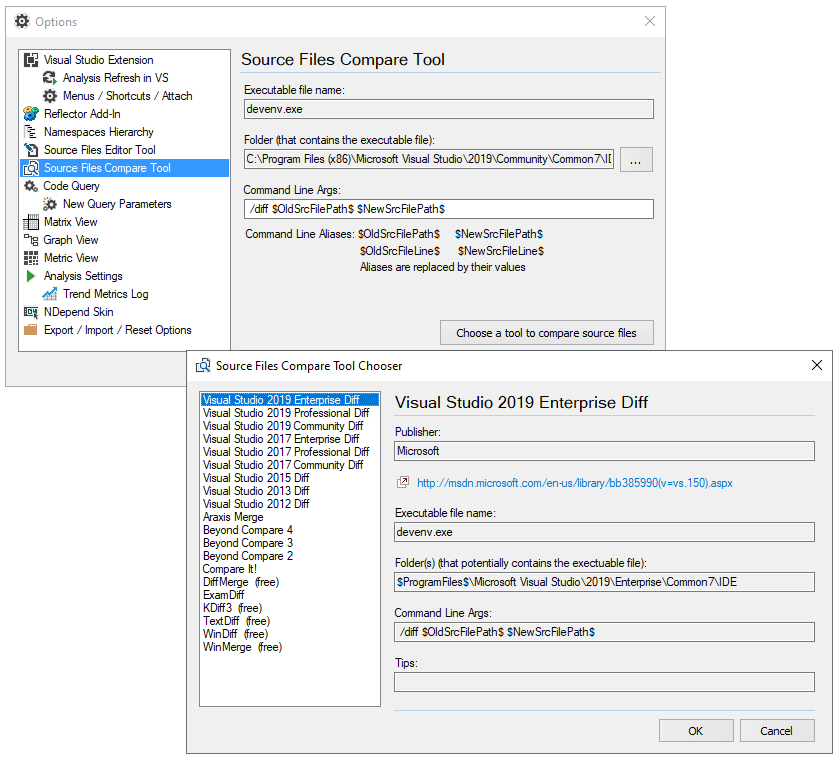
The default tool used to diff sources is Visual Studio, but any other source diff tool like WinMerge can be used by navigating to Options > Source File Compare Tool.
Code Change Review through Global Code Diff
In the main menu, there are three options related to the baseline
- New Issues since Baseline (self explanatory)
- Source Diff since Baseline
- Code Diff since Baseline

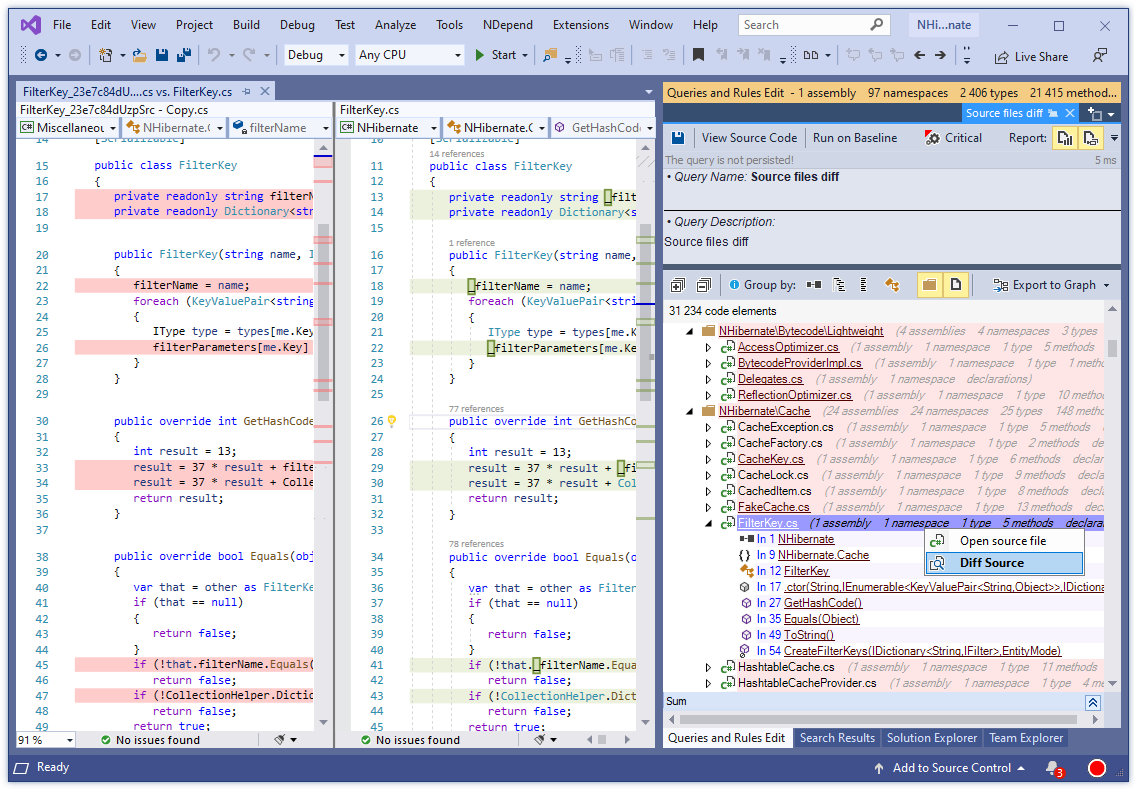
The option Source Diff since Baseline edits a code query that matches all code elements. The result of this code comparison is formatted specifically for an easy code review:
- Code elements are grouped in directories and source files.
- Directories and source files that contain changes are underlined.
- Directories and source files that are new since baseline are bolded.
- Directories that contain changes are expanded.
- Source files are not expanded by default, but expanding them shows any code element changes with the same font-based conventions.
- Double clicking a source file change automatically displays source comparison.
The option Code Diff since Baseline opens the search panel where you can perform a Search Change. The Search Change Panel is actually a CQLinq code query generator related to code changes. For example, in the screenshot below, we can see that asking for Method + Change + Code was Changed or was Added generates this code query:
from m in Application.Methods
where m.CodeWasChanged()
let newLoc = m.NbLinesOfCode
let oldLoc = m.OlderVersion().NbLinesOfCode
select new { m,
             newLoc,
             oldLoc,
             delta = newLoc >= oldLoc ? newLoc - oldLoc : -(oldLoc - newLoc)
           }
The result can help your development team to perform Code Diff Reviews. Not only are all code changes easily identifiable at a glance, but for each method refactored, the developer is just one click away from seeing the code diff in the source files. Moreover, formatting and comment changes are not taken into account here.

The Search Change Panel's options offer various possibilities to explore a code comparison in Visual Studio, including searching for code elements where only code was changed or where only comments were changed, where visibility was changed, where methods or classes were added or removed, and many more possibilities.
An extra option is to search a diff in third-party code, like asking for which library types are not in use anymore. There is often something interesting to learn by reviewing the API usage diff.
Typically, developers write tests for testing automatically refactored and new code. Another useful option is to search for diff coupled with code coverage by tests ratio, like asking for methods where the code was changed (i.e. refactored methods) and where it is not actually properly covered by tests. Reviewing how code diffs are covered by tests is made easy thanks to the Search by Coverage of Changes function.

Code Comparison from within the Source Code
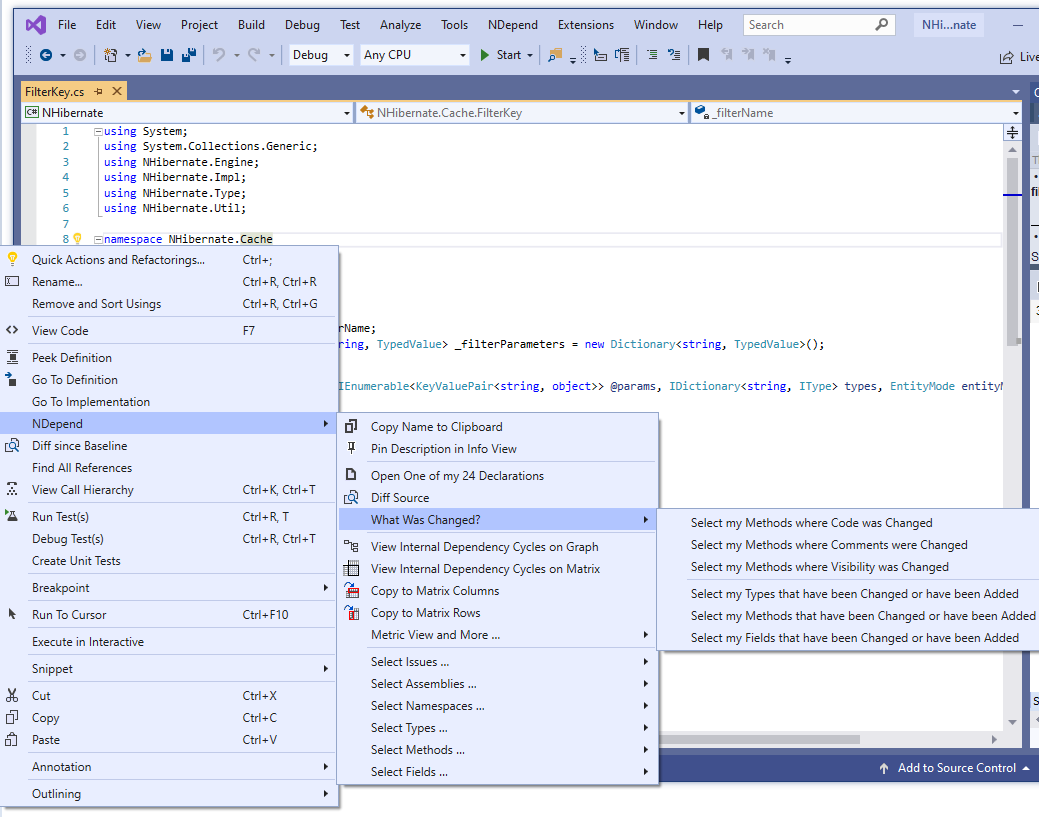
In the Visual Studio Code Editor Window, you can run a Diff since Baseline from the right click menu. This menu is enabled only if the source has been changed since the baseline:

Also, since NDepend recognizes the code element currently being edited and right-clicked in source, the user can, for example, right click a namespace or a class and generate a query to list what was changed:
Code Diff from within the Solution Explorer
Clicking most of items in the Visual Studio Solution Explorer lets users explore the Diff since Baseline. The following items are supported:
- Solution
- Project
- Project Reference
- Folder
- Source File
- Code Element in Source File
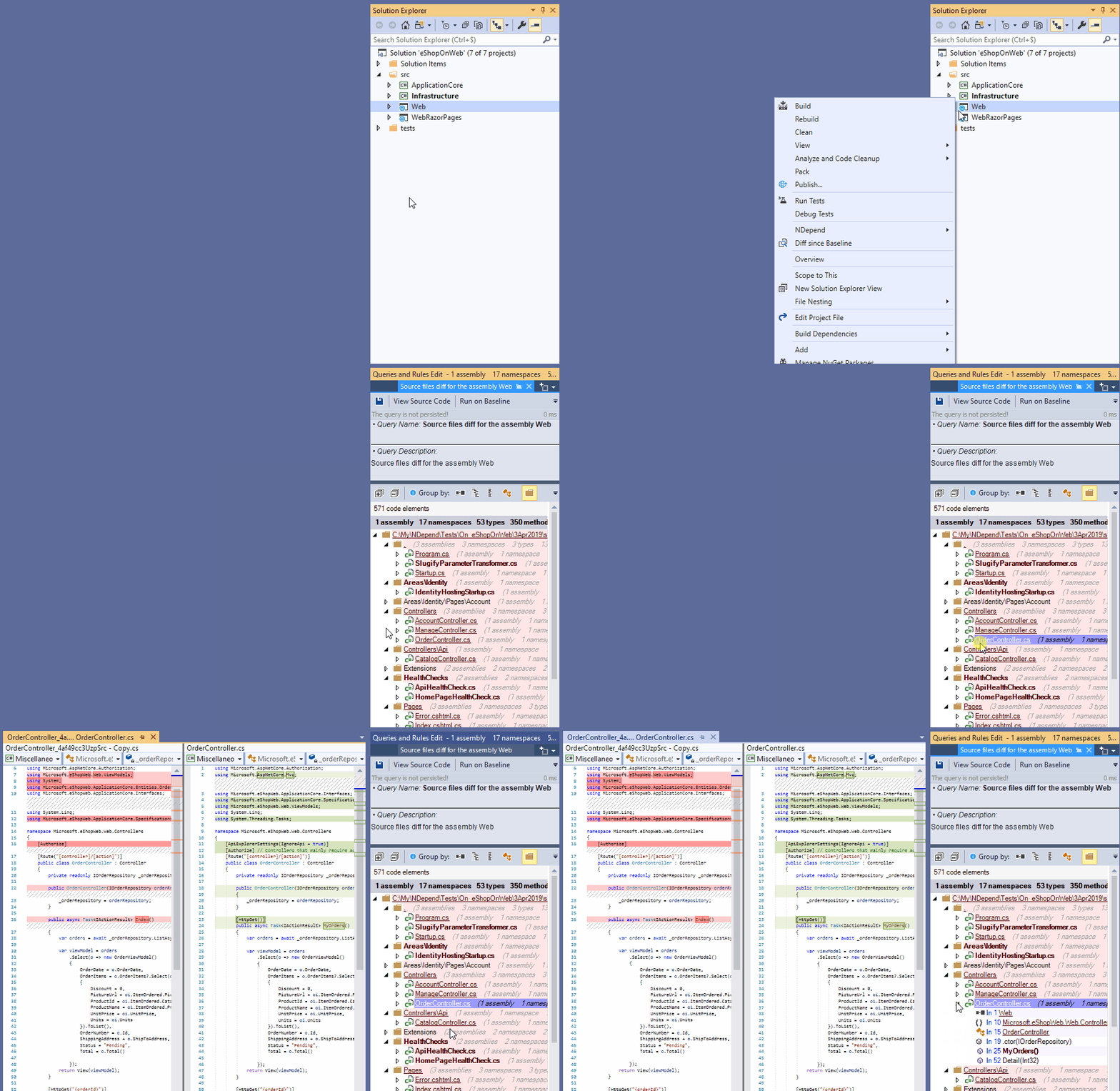
One point to note, is that NDepend proposes a heuristic to infer namespaces from Solution Explorer folders. Indeed, it is a popular good practice to organize source code in a folder hierarchy that mirrors the namespace hierarchy. Right-clicking a folder can result in asking for code changes in a namespace, narrower in scope than looking at the entire project.
Exploring Architecture Changes with the Dependency Matrix
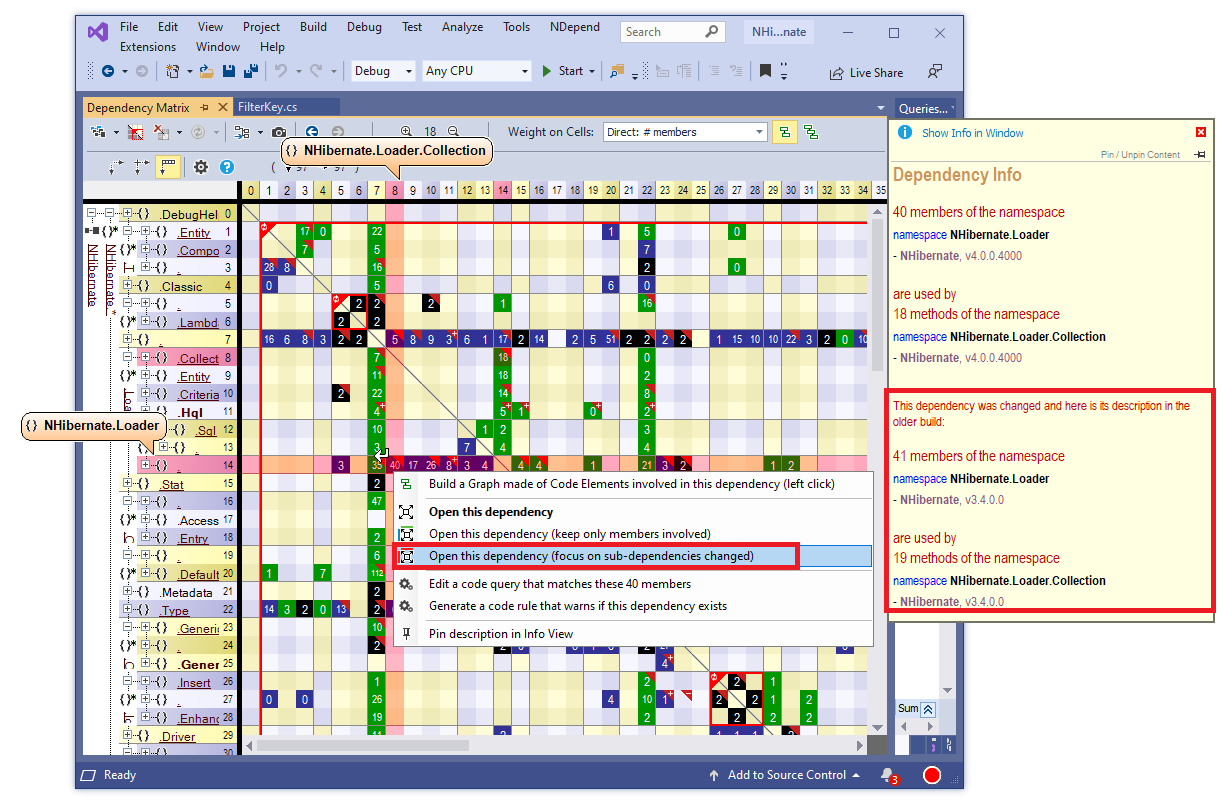
The Dependency Matrix shows a red tick on a cell when the dependency represented has been changed since the baseline.
- If it contains a plus character, it means that the represented dependency has been added since the baseline.
- If it contains a minus character it means that the represented dependency has been removed since the baseline.
- If it doesn't contain a character it means that the represented dependency has been removed since the baseline.
When hovering over a cell with a red tick, the dependency description explains how the dependency has changed.
Also, when right clicking such a cell, the pop-up menu proposes to initialize the matrix horizontal and vertical headers with the code elements involved in the dependency change.
Defining the Baseline for Comparison
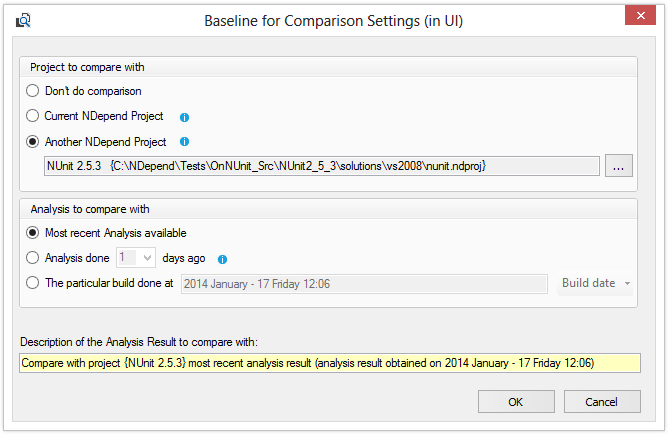
Earlier in the post we introduced the concept of a Baseline for Comparison. This represents the previous snapshot version of the code base against which the comparison is done. Typically, the Baseline for Comparison will be the latest version of the code in production.
The Baseline for Comparison can be specified through the menu: Visual Studio > NDepend > Diff > Define the Two Snapshots to Diff > Define a Baseline for Comparison. The dialog shown below appears and lets us choose different options to define the baseline. The Baseline for Comparison option then persists throughout the NDepend project file.
Enjoy live code diffing in Visual Studio!